> ## Documentation Index
> Fetch the complete documentation index at: https://semantiks.mintlify.site/llms.txt
> Use this file to discover all available pages before exploring further.
# Identity
> Configure the personality and public-facing attributes of your agent. This includes name, greeting, tone, audience, availability, scheduled messages, and communication instructions.
Your agent's identity is what shapes the **first impression** users get when interacting with it. This section allows you to define how your agent presents itself—from name and greeting to tone, language, and availability. Setting up your agent's identity helps deliver a more human, consistent, and trustworthy experience.
Don't forget to click **Save changes** after editing any field in the Identity section. Otherwise, your updates won't be saved.
### General Information
In the **General** tab, you can upload a profile image, assign a name to your agent, and define how it greets and says goodbye to users.
The **profile image** should be square (1:1 ratio) and no larger than 2MB.
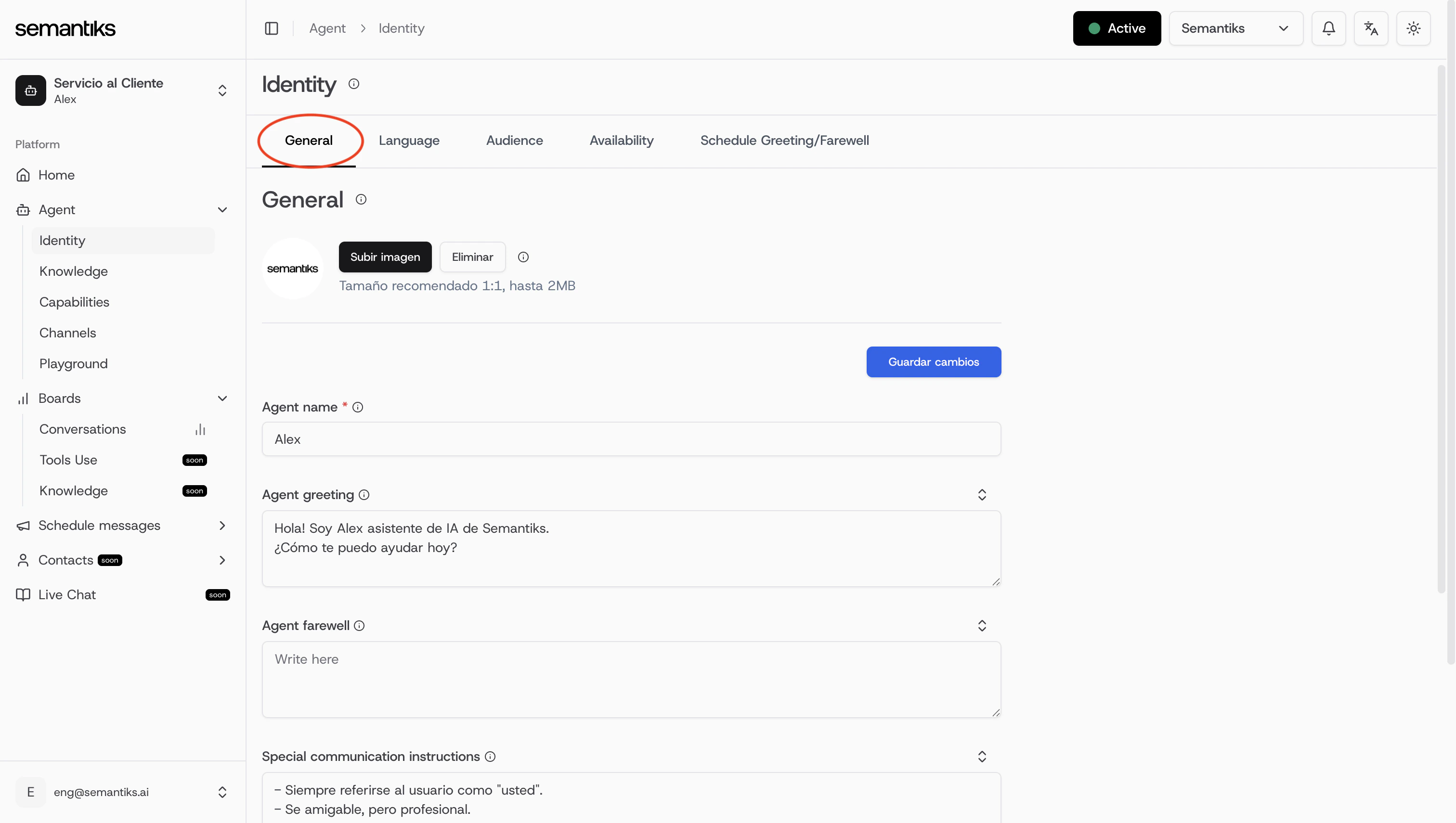 * **Agent name**: This is the display name of your agent. Choose something friendly and aligned with your brand.
* **Agent greeting**: Define the message your agent uses to welcome users. This is the first thing they'll read.
* **Agent farewell**: Enter the closing message your agent will send at the end of the conversation.
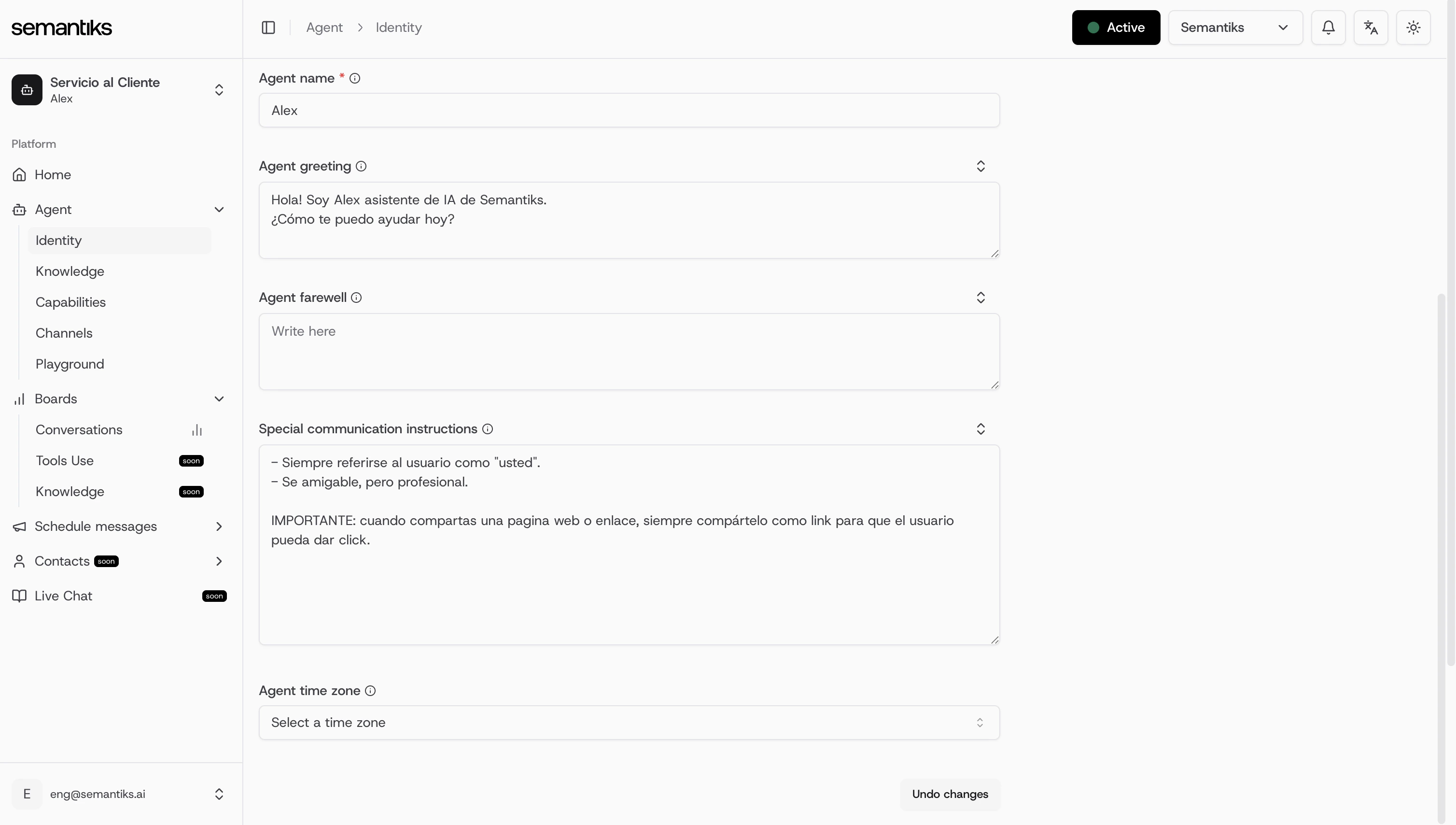
* **Special communication instructions**: This is where you guide your agent on how to interact. Include tone, formal/informal treatment, and any specific behavior.
* **Agent time zone**: Select the correct time zone for your agent. This is essential for time-based features like scheduled greetings or availability settings.
* **Agent name**: This is the display name of your agent. Choose something friendly and aligned with your brand.
* **Agent greeting**: Define the message your agent uses to welcome users. This is the first thing they'll read.
* **Agent farewell**: Enter the closing message your agent will send at the end of the conversation.
* **Special communication instructions**: This is where you guide your agent on how to interact. Include tone, formal/informal treatment, and any specific behavior.
* **Agent time zone**: Select the correct time zone for your agent. This is essential for time-based features like scheduled greetings or availability settings.
 Use this section to make your agent feel truly personal and brand-aligned. Be clear, but also warm.
When you arrive at this page from a **Knowledge Review** suggestion targeting special instructions, the special-instructions text area will automatically open, scroll into view, and be highlighted so you can edit it right away.
***
### Communication Instructions
At the bottom of the **General** tab you'll find the **Communication Instructions** section. These are short, focused directives that steer how your agent communicates with users—for example, enforcing a concise tone, requiring formal language, or always greeting by name.
* You can have up to **20 active** communication instructions at a time.
* Each instruction can be up to **350 characters** long.
* Every instruction requires a **Title** (up to 80 characters) and an **Instruction** body.
* Instructions can be individually **enabled or paused** with a toggle, so you can keep drafts around without them affecting the agent.
When you navigate here from a **Knowledge Review** suggestion, the referenced instruction rows will be **highlighted** with a colored ring and the page will automatically scroll to the first one.
#### Creating an instruction
In the Communication Instructions section, click the **+ Add instruction** button.
Give the instruction a short, descriptive title (e.g. *Concise tone* or *Always greet by name*). The title helps you identify the instruction at a glance in the table.
Describe the behavior you want in clear, direct language. The agent will follow this instruction during every conversation where it is enabled.
Click **Save** to create the instruction. It will be enabled by default.
Use this section to make your agent feel truly personal and brand-aligned. Be clear, but also warm.
When you arrive at this page from a **Knowledge Review** suggestion targeting special instructions, the special-instructions text area will automatically open, scroll into view, and be highlighted so you can edit it right away.
***
### Communication Instructions
At the bottom of the **General** tab you'll find the **Communication Instructions** section. These are short, focused directives that steer how your agent communicates with users—for example, enforcing a concise tone, requiring formal language, or always greeting by name.
* You can have up to **20 active** communication instructions at a time.
* Each instruction can be up to **350 characters** long.
* Every instruction requires a **Title** (up to 80 characters) and an **Instruction** body.
* Instructions can be individually **enabled or paused** with a toggle, so you can keep drafts around without them affecting the agent.
When you navigate here from a **Knowledge Review** suggestion, the referenced instruction rows will be **highlighted** with a colored ring and the page will automatically scroll to the first one.
#### Creating an instruction
In the Communication Instructions section, click the **+ Add instruction** button.
Give the instruction a short, descriptive title (e.g. *Concise tone* or *Always greet by name*). The title helps you identify the instruction at a glance in the table.
Describe the behavior you want in clear, direct language. The agent will follow this instruction during every conversation where it is enabled.
Click **Save** to create the instruction. It will be enabled by default.