> ## Documentation Index
> Fetch the complete documentation index at: https://semantiks.mintlify.site/llms.txt
> Use this file to discover all available pages before exploring further.
# Knowledge
> Here you would learn how to do the basic configuration for your agent. This includes Adding Knowledge, Channels Integrations. Embedded Links and basic Tool Configuration
## Adding Knowledge
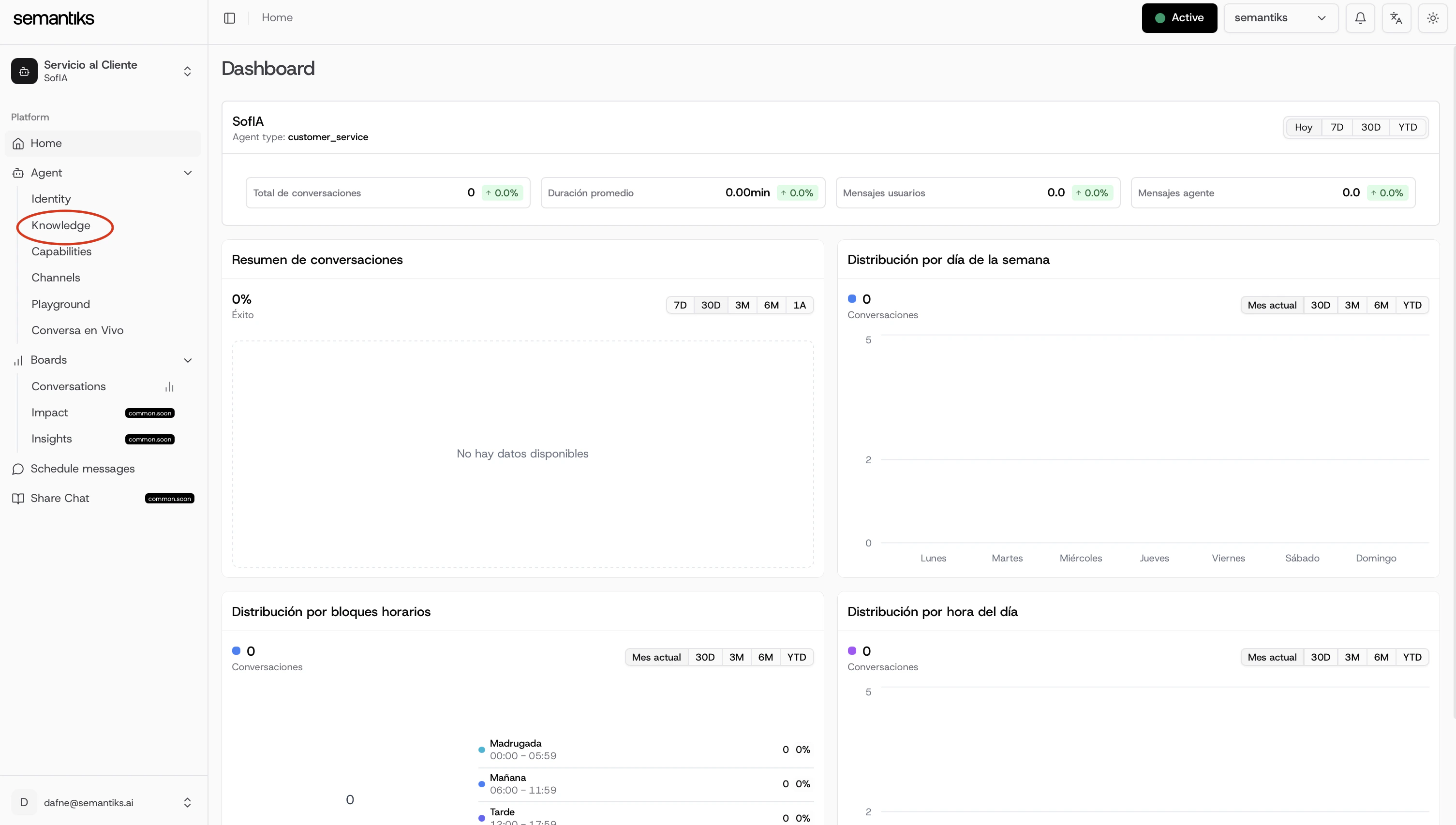
If you are here you already **finished the onboarding** and have your console ready to set-up. The first step would be adding some knowledge to the agent
**Knowledge is a key component of your agent.**\
The agent will only respond based on the information available in your knowledge base. This means that adding irrelevant data or lacking essential information can lead to a poor user experience. That's why setting up your knowledge base correctly is one of the most critical steps when configuring your agent.
The Knowledge page is organized into tabs:
* **FAQs** — manage your frequently asked questions.
* **Files** — upload documents for the agent to learn from.
* **Links** — extract knowledge from web pages.
* **Glossaries** — define terms and definitions so your agent uses consistent, accurate vocabulary. See the dedicated [Glossaries](/agent/en/glossaries) page for full details.
* **Vector Vault** — manage your vector storage.
 ***
## FAQs
The FAQs tab lets you create, organize, and manage the frequently asked questions your agent uses to respond to users. FAQs are grouped by **topics**, and each FAQ consists of a question and an answer.
### Filtering FAQs by escalation
If your FAQs include entries that are configured to **escalate to a human agent**, you can quickly isolate them using the **Escalations** filter button in the toolbar.
* Click the **Escalations** button (identified by a person icon) to show **only** the FAQs that have the escalation flag enabled.
* The button displays a count in parentheses showing how many FAQs in the current topic (or across all topics) are set to escalate.
* Click the button again to remove the filter and see all FAQs.
Use the Escalations filter together with the search bar and topic selector to quickly audit which questions hand off to a live agent.
***
## Knowledge Review
The **Knowledge Review** is an AI-powered audit tool that scans your agent's entire knowledge base—FAQs, glossary entries, communication instructions, and special instructions—and returns actionable suggestions to improve quality and consistency.
### Opening the Knowledge Review
Click the **✨ (sparkle) icon** in the top-right area of the header bar. The icon appears whenever you have an agent selected. A sidebar panel slides open on the right side of the screen.
The review button is available from **any page** inside the agent section—not just the Knowledge page—so you can trigger an audit at any time.
### How it works
1. **Run the review** — When you open the sidebar for the first time (or click **Run review again**), the platform sends your agent's knowledge to an AI model that analyzes it for issues like duplicates, contradictions, outdated content, and gaps.
2. **Read the summary** — At the top of the sidebar you'll see a brief AI-generated summary of your knowledge base's overall health.
3. **Browse suggestions** — Below the summary, each suggestion card shows:
* An **icon** indicating the target area (FAQ, glossary, communication instruction, or special instructions).
* A **title** describing the suggestion.
* An **action badge** (`edit`, `merge`, `delete`, or `review`) so you know what kind of cleanup is recommended.
* A **reason** explaining why the change is suggested.
4. **Jump to the item** — Click the link at the bottom of an expanded suggestion card to navigate directly to the affected entry. The platform will **highlight** the relevant items on the destination page so you can find them instantly.
### Suggestion targets
| Target | Where it links |
| ----------------------------- | ------------------------------------------------------------------------------------------------------- |
| **FAQ** | Knowledge → FAQs tab — the referenced FAQ row is highlighted |
| **Glossary** | Glossaries page — the matching glossary entry is highlighted |
| **Communication Instruction** | Identity page → Communication Instructions section — the matching row is highlighted |
| **Special Instructions** | Identity page → Special Instructions text area — the field opens, scrolls into view, and is highlighted |
***
## FAQs
The FAQs tab lets you create, organize, and manage the frequently asked questions your agent uses to respond to users. FAQs are grouped by **topics**, and each FAQ consists of a question and an answer.
### Filtering FAQs by escalation
If your FAQs include entries that are configured to **escalate to a human agent**, you can quickly isolate them using the **Escalations** filter button in the toolbar.
* Click the **Escalations** button (identified by a person icon) to show **only** the FAQs that have the escalation flag enabled.
* The button displays a count in parentheses showing how many FAQs in the current topic (or across all topics) are set to escalate.
* Click the button again to remove the filter and see all FAQs.
Use the Escalations filter together with the search bar and topic selector to quickly audit which questions hand off to a live agent.
***
## Knowledge Review
The **Knowledge Review** is an AI-powered audit tool that scans your agent's entire knowledge base—FAQs, glossary entries, communication instructions, and special instructions—and returns actionable suggestions to improve quality and consistency.
### Opening the Knowledge Review
Click the **✨ (sparkle) icon** in the top-right area of the header bar. The icon appears whenever you have an agent selected. A sidebar panel slides open on the right side of the screen.
The review button is available from **any page** inside the agent section—not just the Knowledge page—so you can trigger an audit at any time.
### How it works
1. **Run the review** — When you open the sidebar for the first time (or click **Run review again**), the platform sends your agent's knowledge to an AI model that analyzes it for issues like duplicates, contradictions, outdated content, and gaps.
2. **Read the summary** — At the top of the sidebar you'll see a brief AI-generated summary of your knowledge base's overall health.
3. **Browse suggestions** — Below the summary, each suggestion card shows:
* An **icon** indicating the target area (FAQ, glossary, communication instruction, or special instructions).
* A **title** describing the suggestion.
* An **action badge** (`edit`, `merge`, `delete`, or `review`) so you know what kind of cleanup is recommended.
* A **reason** explaining why the change is suggested.
4. **Jump to the item** — Click the link at the bottom of an expanded suggestion card to navigate directly to the affected entry. The platform will **highlight** the relevant items on the destination page so you can find them instantly.
### Suggestion targets
| Target | Where it links |
| ----------------------------- | ------------------------------------------------------------------------------------------------------- |
| **FAQ** | Knowledge → FAQs tab — the referenced FAQ row is highlighted |
| **Glossary** | Glossaries page — the matching glossary entry is highlighted |
| **Communication Instruction** | Identity page → Communication Instructions section — the matching row is highlighted |
| **Special Instructions** | Identity page → Special Instructions text area — the field opens, scrolls into view, and is highlighted |