> ## Documentation Index
> Fetch the complete documentation index at: https://semantiks.mintlify.site/llms.txt
> Use this file to discover all available pages before exploring further.
# How to Set Up IntelliAssign with Load Balanced Assignment
> Step-by-step guide to enable Freshchat IntelliAssign so escalated conversations are distributed by agent load.
IntelliAssign is Freshchat's automatic conversation routing engine. When enabled with **Load Balanced** logic, escalated conversations are assigned to the agent with the most available capacity — instead of a blind rotation — so no single agent ends up with a full queue while teammates sit idle. When your Semantiks agent escalates a conversation, it assigns it to your Freshchat group and lets IntelliAssign pick the best available agent.
## Quick Summary of the Steps
Setting up IntelliAssign with Load Balanced assignment takes just a few minutes:
1. Enable **IntelliAssign** in your Freshchat admin settings and select the **Load Balanced** logic.
2. Configure **Agent Settings** — especially the active conversations limit per member.
3. In **Group Settings**, enable IntelliAssign for the group connected to Semantiks.
4. Have each agent turn on **"Set active on IntelliAssign"** from their profile.
That's it! From then on, every conversation your Semantiks agent escalates will be routed to the agent with the lightest workload.
***
IntelliAssign has two main assignment methods: **Round Robin** (assigns in turns, without considering how busy each agent is) and **Load Balanced** (assigns to the agent with the most free capacity at that moment). We recommend Load Balanced for support teams where conversations vary in duration.
**Steps**
1. Go to the Freshchat console.
2. In the left sidebar, click Admin Settings.
3. Find and open IntelliAssign (under Configuration and Workflows).
4. Switch the toggle from Disabled to Enabled.
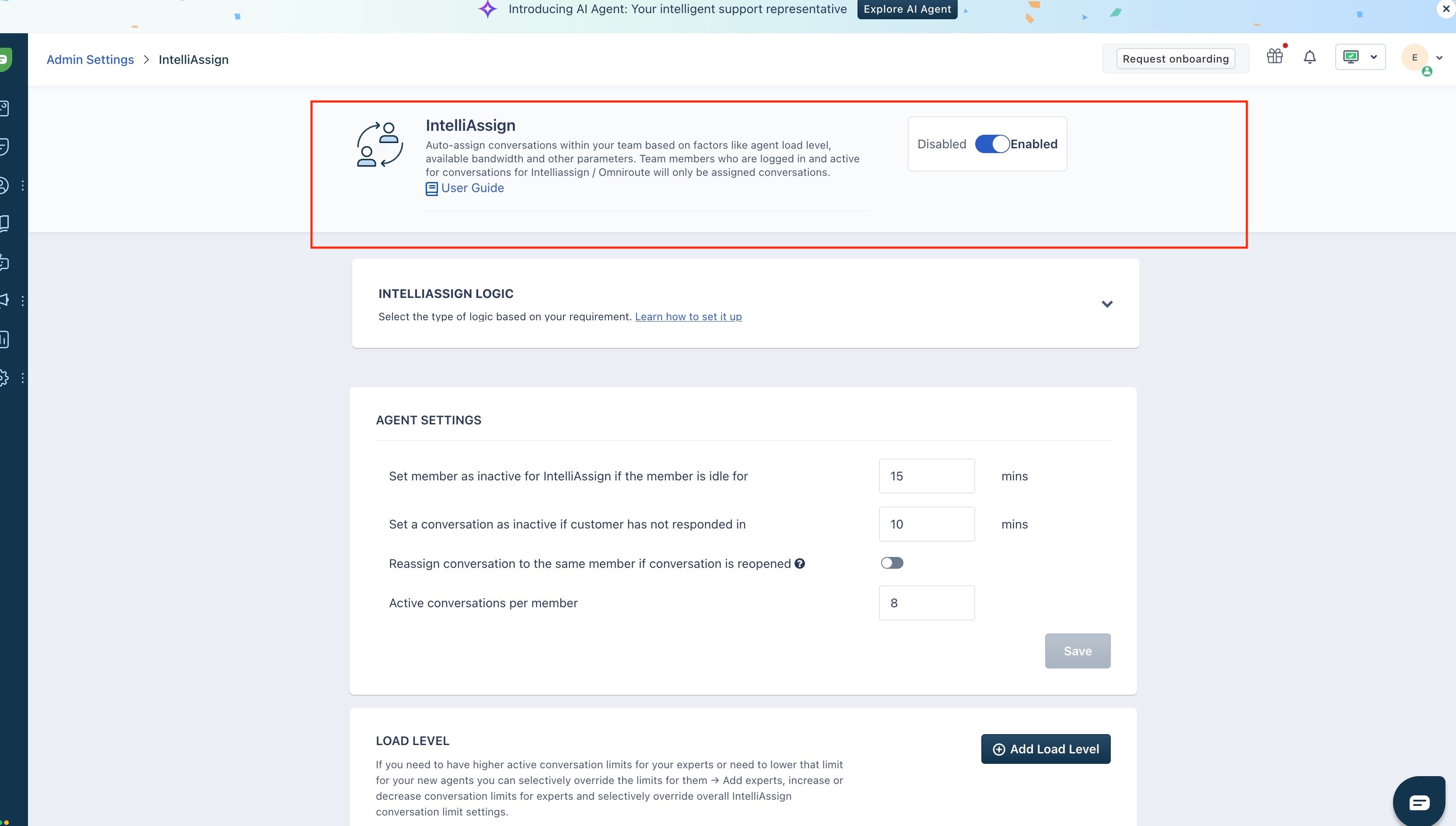 5. Open the IntelliAssign Logic section and select Load Balanced.
These settings control when an agent stops receiving conversations:
* **Idle time:** minutes of inactivity before an agent is marked inactive for IntelliAssign.
* **Active conversations per member:** the maximum number of simultaneous conversations per agent. Once an agent reaches this limit, IntelliAssign routes new conversations to teammates with free capacity.
**Steps**
1. On the same IntelliAssign page, scroll to Agent Settings.
2. Set Active conversations per member according to your team's capacity (for example, 8).
3. Optionally, use Load Level to override the limit for specific agents (e.g., a lower limit for new agents, a higher one for experts).
4. Click Save.
This is the most commonly missed step. Enabling IntelliAssign at the account level is not enough — you must also enable it **for the specific group** that receives escalations from Semantiks. Without this, conversations assigned to the group will wait in the group queue instead of being routed to an agent.
**Steps**
1. Scroll down to the Group Settings section on the IntelliAssign page.
2. Find the row for the group connected to Semantiks (for example, Support).
3. Turn on the toggle in the Enable/Disable IntelliAssign for column.
5. Open the IntelliAssign Logic section and select Load Balanced.
These settings control when an agent stops receiving conversations:
* **Idle time:** minutes of inactivity before an agent is marked inactive for IntelliAssign.
* **Active conversations per member:** the maximum number of simultaneous conversations per agent. Once an agent reaches this limit, IntelliAssign routes new conversations to teammates with free capacity.
**Steps**
1. On the same IntelliAssign page, scroll to Agent Settings.
2. Set Active conversations per member according to your team's capacity (for example, 8).
3. Optionally, use Load Level to override the limit for specific agents (e.g., a lower limit for new agents, a higher one for experts).
4. Click Save.
This is the most commonly missed step. Enabling IntelliAssign at the account level is not enough — you must also enable it **for the specific group** that receives escalations from Semantiks. Without this, conversations assigned to the group will wait in the group queue instead of being routed to an agent.
**Steps**
1. Scroll down to the Group Settings section on the IntelliAssign page.
2. Find the row for the group connected to Semantiks (for example, Support).
3. Turn on the toggle in the Enable/Disable IntelliAssign for column.
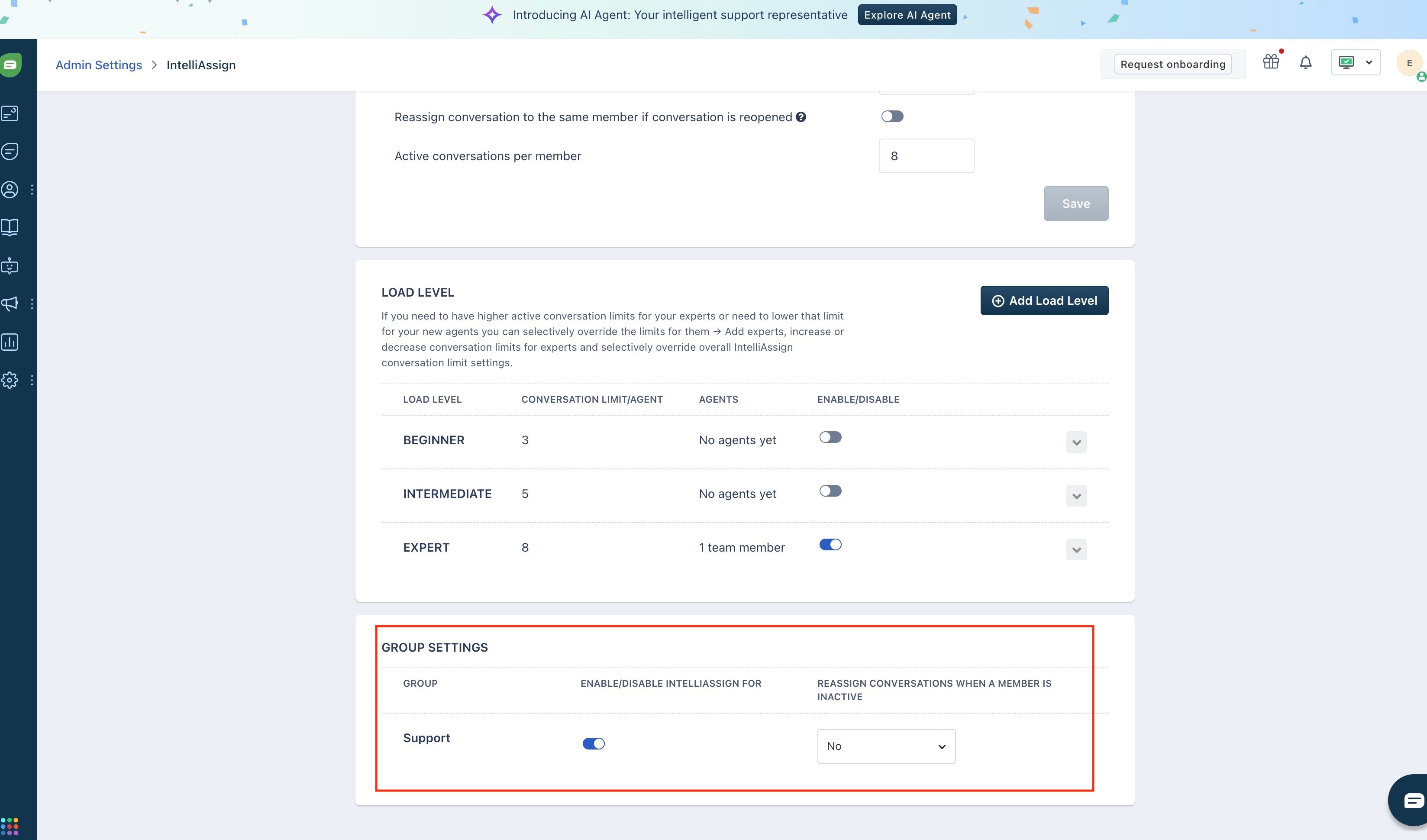 4. Optionally, set Reassign conversations when a member is inactive to Yes so chats don't get stuck if an agent disconnects.
Being logged in and "Available" is **not** the same as being active on IntelliAssign. Each agent must turn on their personal toggle — otherwise IntelliAssign will not assign them any conversations.
1. Each agent logs in to Freshchat.
2. Click the profile icon in the top-right corner.
3. Turn on Set active on IntelliAssign.
Once this is done, every conversation escalated by your Semantiks agent will be assigned to the group and IntelliAssign will pick the agent with the most available capacity. If IntelliAssign cannot assign anyone (for example, if no agent is active), Semantiks automatically falls back to its own rotation between available agents, so no conversation is ever left waiting.
4. Optionally, set Reassign conversations when a member is inactive to Yes so chats don't get stuck if an agent disconnects.
Being logged in and "Available" is **not** the same as being active on IntelliAssign. Each agent must turn on their personal toggle — otherwise IntelliAssign will not assign them any conversations.
1. Each agent logs in to Freshchat.
2. Click the profile icon in the top-right corner.
3. Turn on Set active on IntelliAssign.
Once this is done, every conversation escalated by your Semantiks agent will be assigned to the group and IntelliAssign will pick the agent with the most available capacity. If IntelliAssign cannot assign anyone (for example, if no agent is active), Semantiks automatically falls back to its own rotation between available agents, so no conversation is ever left waiting.