> ## Documentation Index
> Fetch the complete documentation index at: https://semantiks.mintlify.site/llms.txt
> Use this file to discover all available pages before exploring further.
# Cómo integrar con Freshchat
> Guía paso a paso para conectar tu agente Semantiks AI con Freshchat.
Esta integración conecta Freshchat (la plataforma de mensajería de Freshworks) con un agente conversacional de Semantiks. Así, los mensajes que los usuarios envían por el chat de Freshchat serán gestionados automáticamente por nuestro agente de IA como primera línea de soporte. Si tienes habilitada la herramienta de escalamiento, los usuarios podrán ser transferidos a tu equipo humano en Freshchat cuando sea necesario.
## Resumen rápido de los pasos
Integrar Freshchat con Semantiks es un proceso sencillo y rápido. Solo necesitas seguir cuatro pasos básicos para conectar ambos sistemas y empezar a gestionar tus conversaciones automáticamente.
1. Obtén el **App ID** desde la configuración del widget web de Freshchat.
2. Accede a la sección de integraciones para conseguir tu **API Key** y el **Base URL** de tu cuenta.
3. El siguiente paso es configurar el **Webhook** y copiar la **Public Key** que Freshchat te proporcionará para asegurar la comunicación.
4. Por último, simplemente ingresa estos datos en la consola de Semantiks y activa el canal.
¡Así de fácil! En pocos minutos tendrás tu agente de IA listo para responder a tus usuarios en Freshchat.
***
El App ID es un identificador único de tu configuración de Freshchat. Lo vamos a encontrar en los ajustes de integración del widget web.
**Pasos**
1. Entra a la consola de Freshchat.
2. En el menú lateral izquierdo, haz clic en Admin Settings.
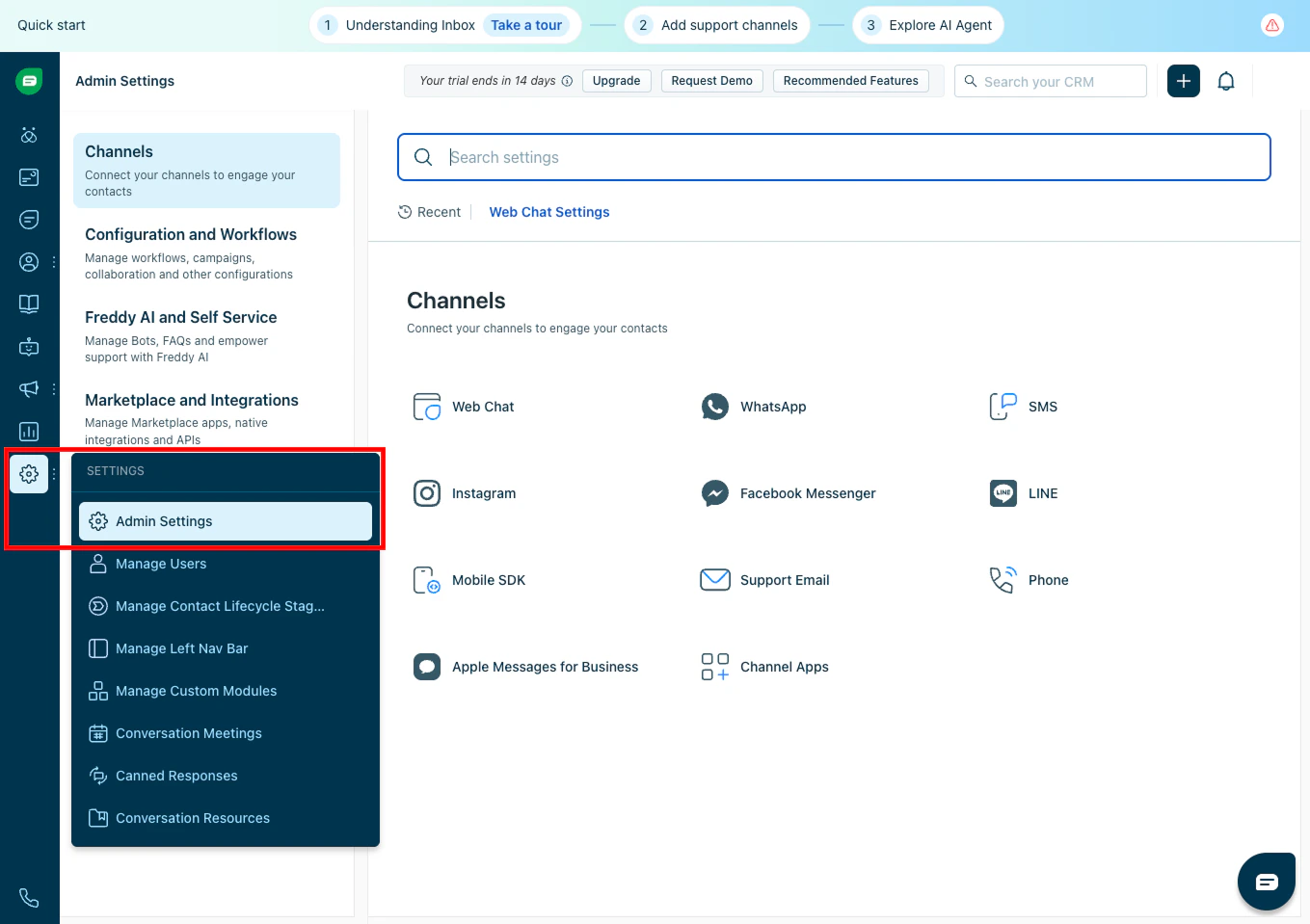 3. Busca y entra a la sección Configuration and Workflows (en la interfaz suele aparecer en inglés; equivale a configuración y workflows).
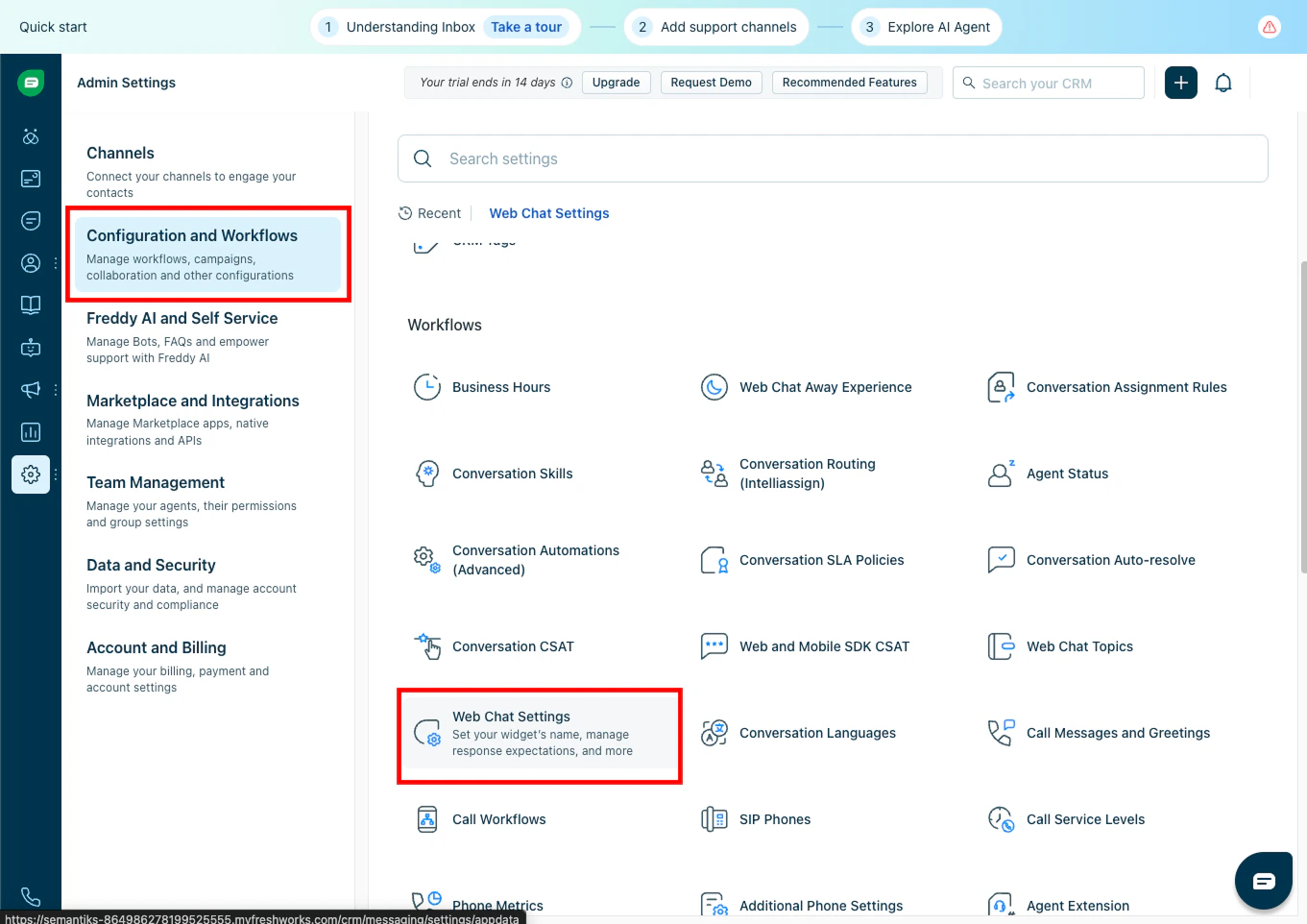
4. Selecciona la opción Webchat Settings.
3. Busca y entra a la sección Configuration and Workflows (en la interfaz suele aparecer en inglés; equivale a configuración y workflows).
4. Selecciona la opción Webchat Settings.
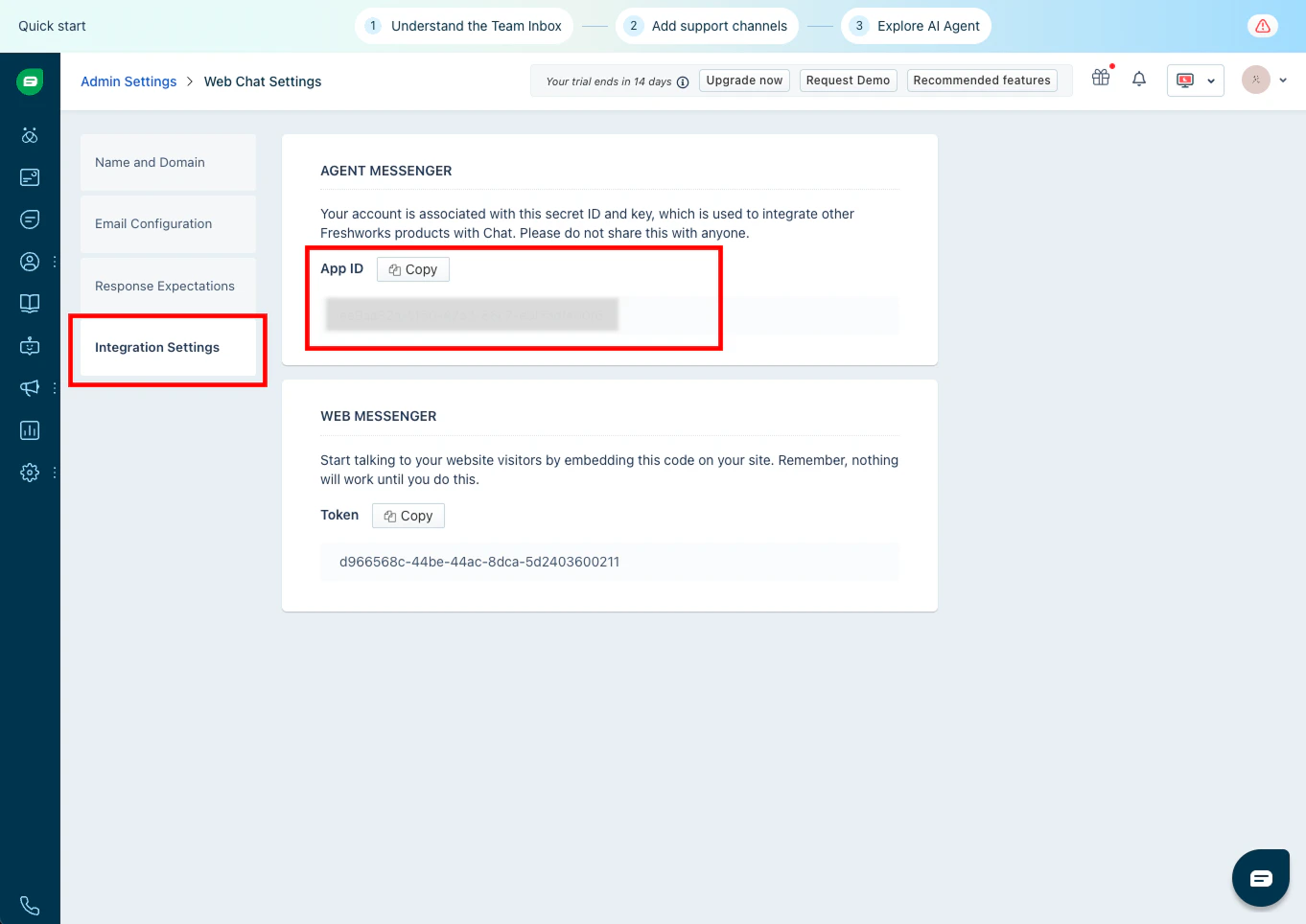
 5. Luego, haz clic en Integration Settings.
6. Aquí encontrarás tu App ID —cópialo y guárdalo.
5. Luego, haz clic en Integration Settings.
6. Aquí encontrarás tu App ID —cópialo y guárdalo.
 El API Key y el Base URL nos van a permitir autenticar integración del Agente hacia Freshchat desde Semantiks.
* **API Key:** Es una clave secreta única que identifica y autoriza a tu cuenta para interactuar con la API de Freshchat. Permite que Semantiks pueda enviar y recibir información de tu cuenta de Freshchat de forma segura.
* **Base URL:** Es la dirección base del servidor de Freshchat donde está alojada tu cuenta (por ejemplo, según la región: EU, US, IN, etc.). Todas las peticiones a la API se hacen a partir de esta URL, asegurando que los datos se envíen al entorno correcto.
**Pasos**
1. Regresa al panel principal de Admin Settings.
2. Ahora ve a Marketplace and Integrations.
3. Dentro de esta sección, selecciona API Settings.
El API Key y el Base URL nos van a permitir autenticar integración del Agente hacia Freshchat desde Semantiks.
* **API Key:** Es una clave secreta única que identifica y autoriza a tu cuenta para interactuar con la API de Freshchat. Permite que Semantiks pueda enviar y recibir información de tu cuenta de Freshchat de forma segura.
* **Base URL:** Es la dirección base del servidor de Freshchat donde está alojada tu cuenta (por ejemplo, según la región: EU, US, IN, etc.). Todas las peticiones a la API se hacen a partir de esta URL, asegurando que los datos se envíen al entorno correcto.
**Pasos**
1. Regresa al panel principal de Admin Settings.
2. Ahora ve a Marketplace and Integrations.
3. Dentro de esta sección, selecciona API Settings.
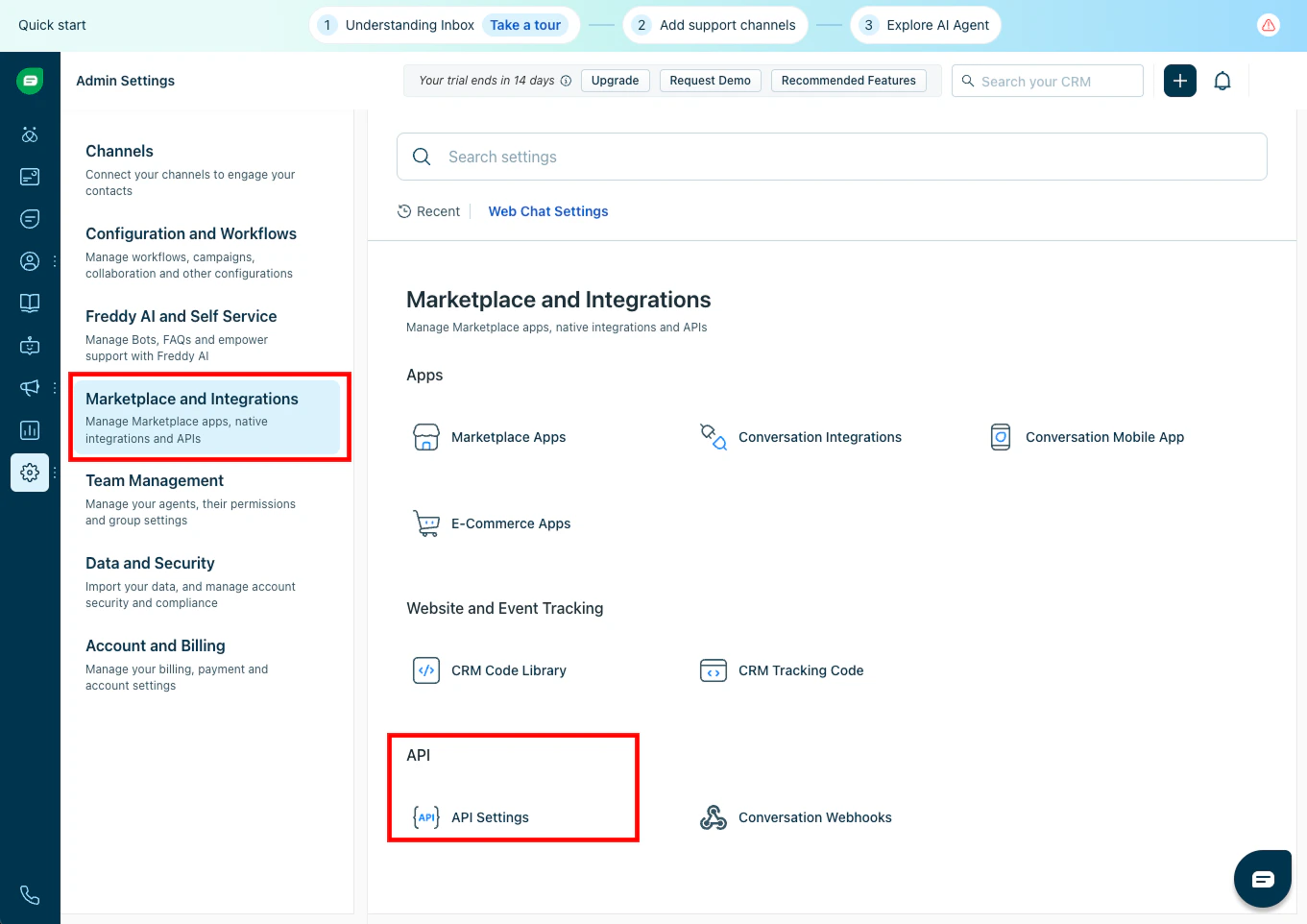 4. Aquí podrás ver y copiar:
* **API Key**
* **Base URL**
4. Aquí podrás ver y copiar:
* **API Key**
* **Base URL**
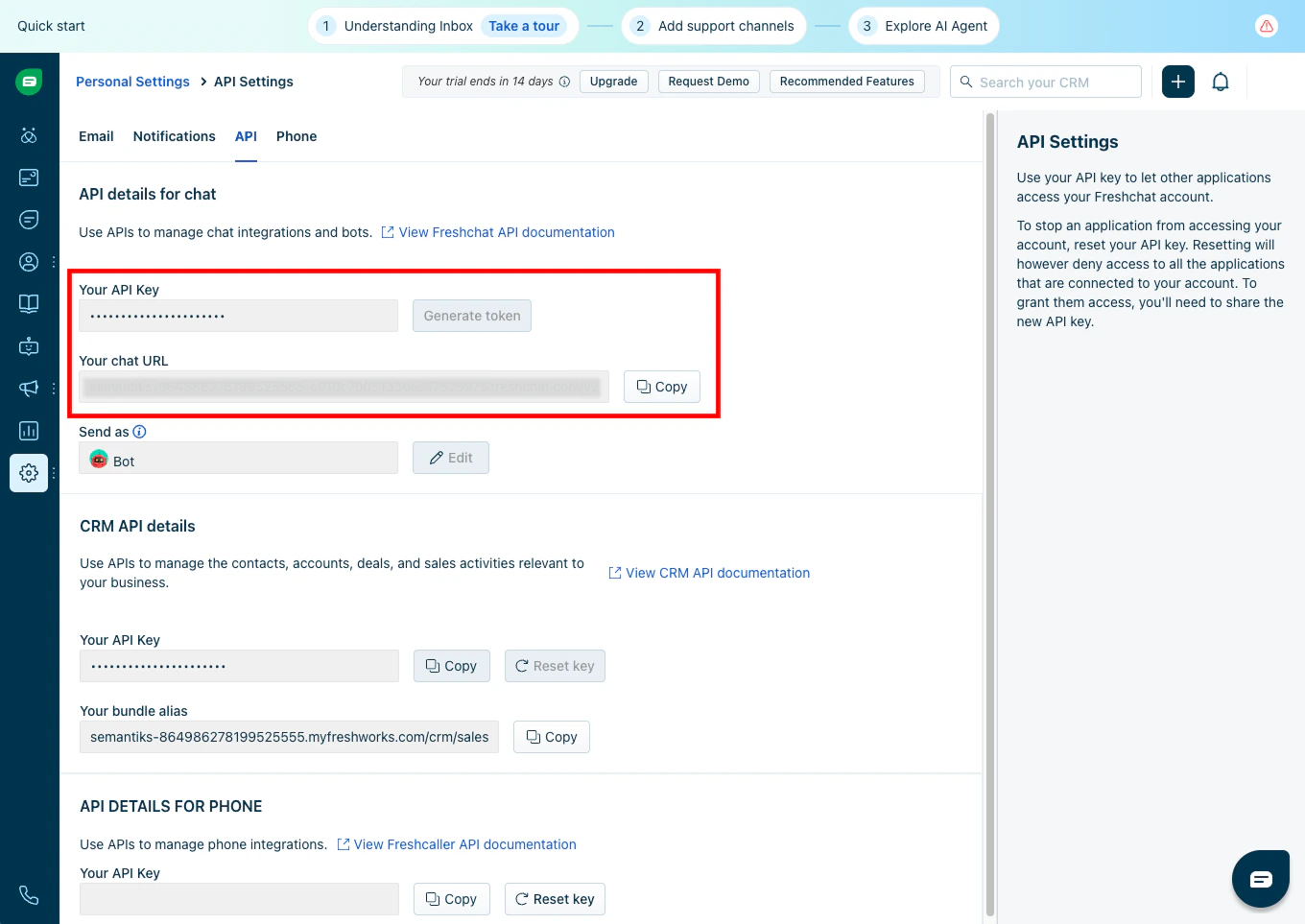 Es muy importante guardar estos valores en un lugar seguro. La API Key es sensible y no debe compartirse públicamente.
El Webhook y la Public Key son esenciales para asegurar la comunicación entre Freshchat y Semantiks.
* **Webhook:** Es la URL a la que Freshchat enviará automáticamente los mensajes y eventos generados en tu chat. Así, Semantiks podrá recibir y procesar las conversaciones en tiempo real.
* **Public Key:** Es una clave pública que Freshchat genera para tu integración. Permite a Semantiks verificar que los mensajes realmente provienen de Freshchat y no han sido alterados, garantizando la seguridad de la integración.
**Pasos**
1. Sigue en la misma sección de API Settings dentro de Marketplace and Integrations, debemos seleccionar Conversation Webhooks:
Es muy importante guardar estos valores en un lugar seguro. La API Key es sensible y no debe compartirse públicamente.
El Webhook y la Public Key son esenciales para asegurar la comunicación entre Freshchat y Semantiks.
* **Webhook:** Es la URL a la que Freshchat enviará automáticamente los mensajes y eventos generados en tu chat. Así, Semantiks podrá recibir y procesar las conversaciones en tiempo real.
* **Public Key:** Es una clave pública que Freshchat genera para tu integración. Permite a Semantiks verificar que los mensajes realmente provienen de Freshchat y no han sido alterados, garantizando la seguridad de la integración.
**Pasos**
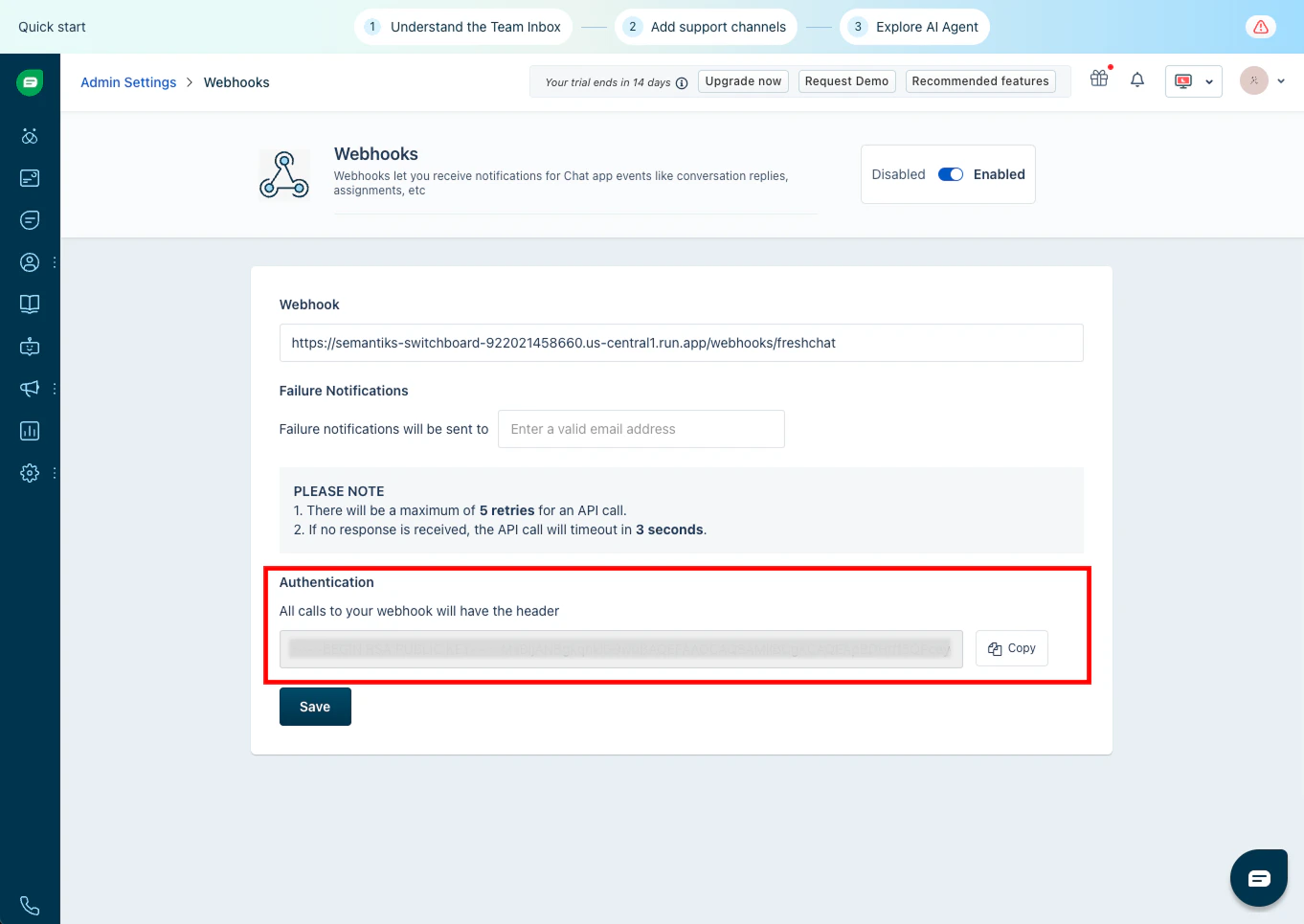
1. Sigue en la misma sección de API Settings dentro de Marketplace and Integrations, debemos seleccionar Conversation Webhooks:
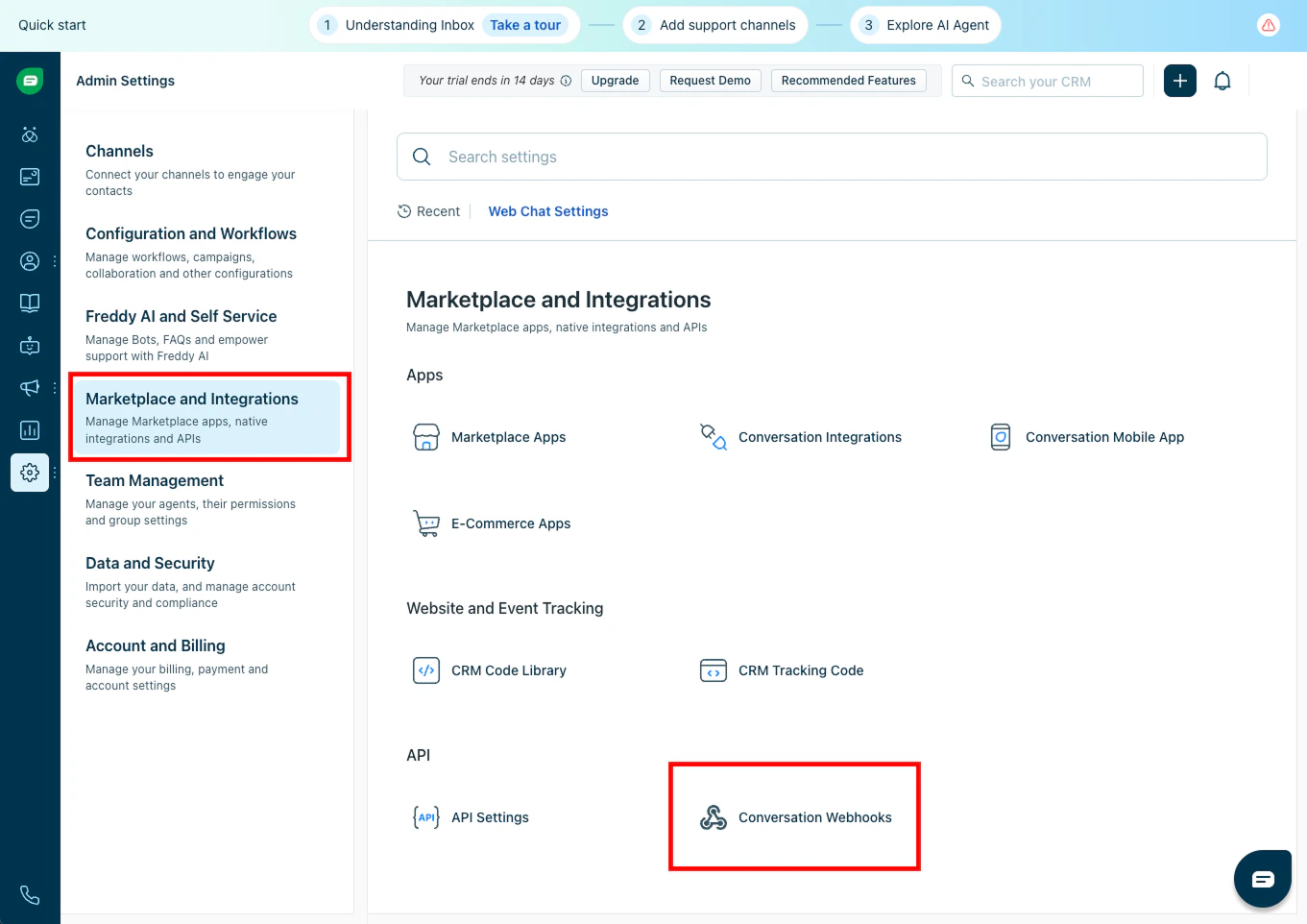 2. Haz clic en el botón Enable, si aún no lo has activado.
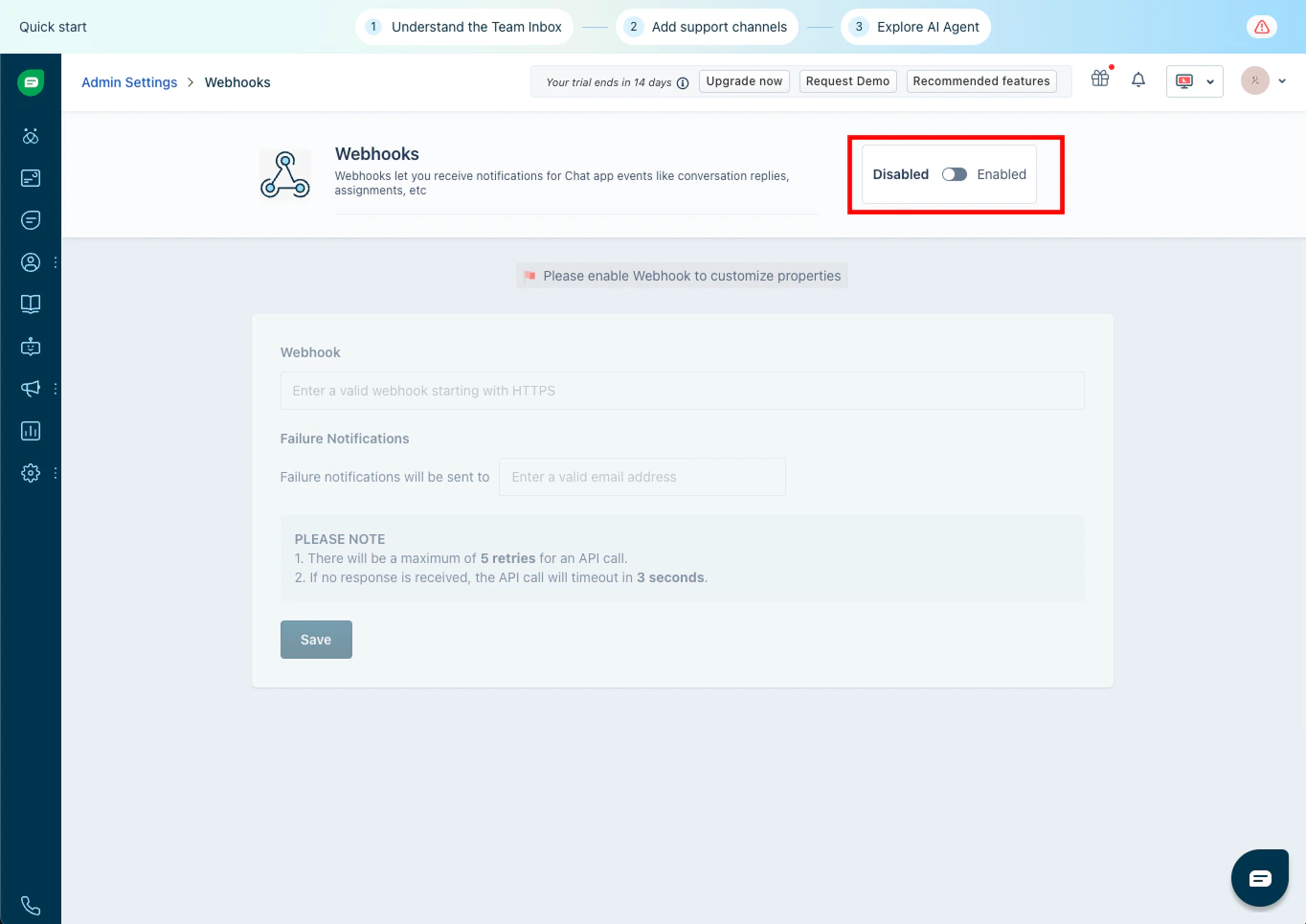 3. Una vez habilitada la sección, en la primera caja de texto *Webhook*, pega esta URL:
```bash Webhook URL theme={null}
https://semantiks-switchboard-922021458660.us-central1.run.app/webhooks/freshchat
```
3. Una vez habilitada la sección, en la primera caja de texto *Webhook*, pega esta URL:
```bash Webhook URL theme={null}
https://semantiks-switchboard-922021458660.us-central1.run.app/webhooks/freshchat
```
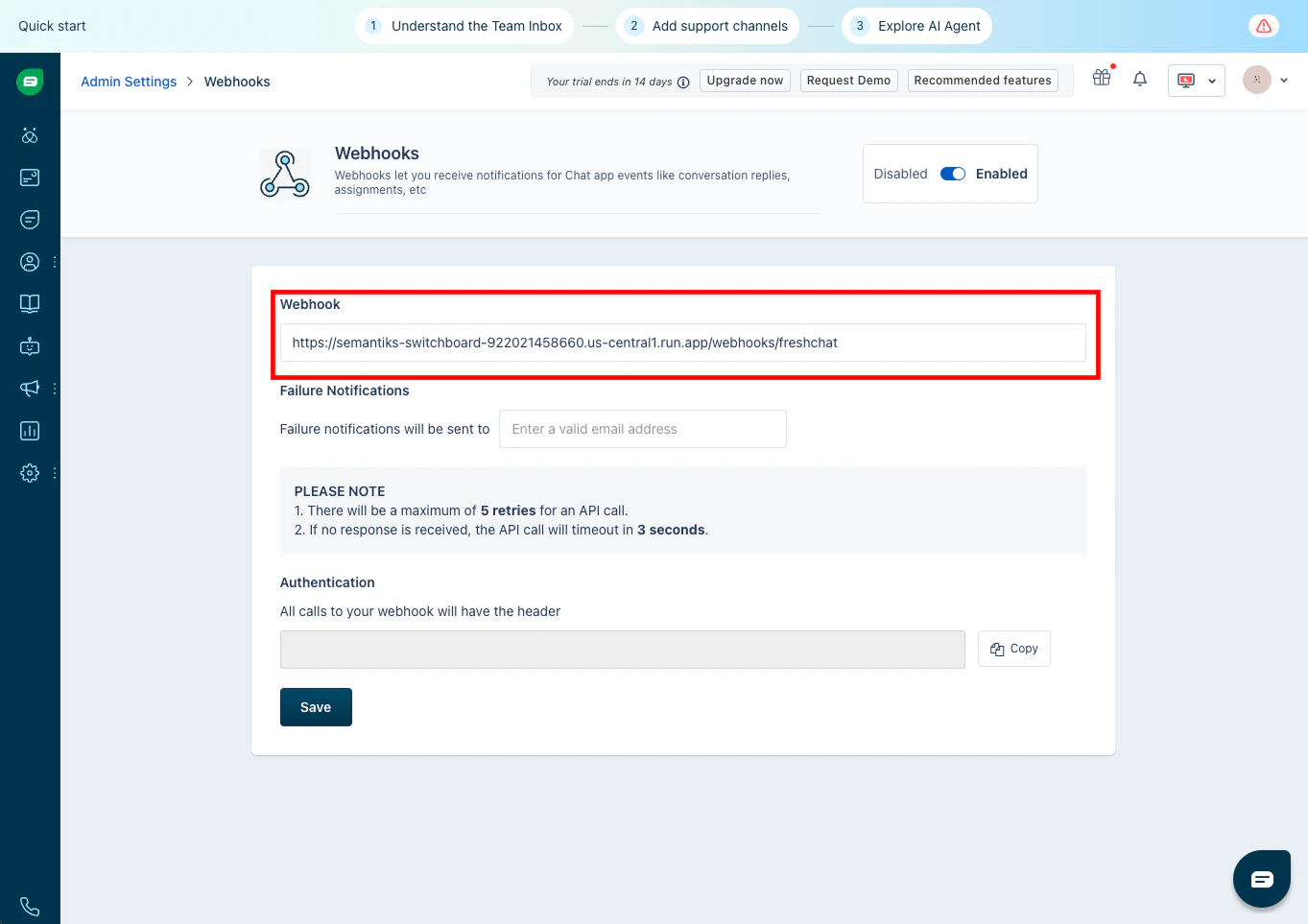 4. Al activar el webhook, Freshchat te mostrará una Public Key en la seccion *Authentication* que debes copiar . Esta clave será necesaria para verificar que los mensajes vienen realmente de Freshchat.
 Para completar la integración, necesitarás los siguientes datos que obtuviste en los pasos anteriores:
* **App ID**
* **Public Key**
* **Base URL**
* **API Key**
1. Entra a la consola de Semantiks con tu cuenta.
2. En el menú de la izquierda, haz clic en Canales y selecciona la pestaña de canales externos.\\
Para completar la integración, necesitarás los siguientes datos que obtuviste en los pasos anteriores:
* **App ID**
* **Public Key**
* **Base URL**
* **API Key**
1. Entra a la consola de Semantiks con tu cuenta.
2. En el menú de la izquierda, haz clic en Canales y selecciona la pestaña de canales externos.\\
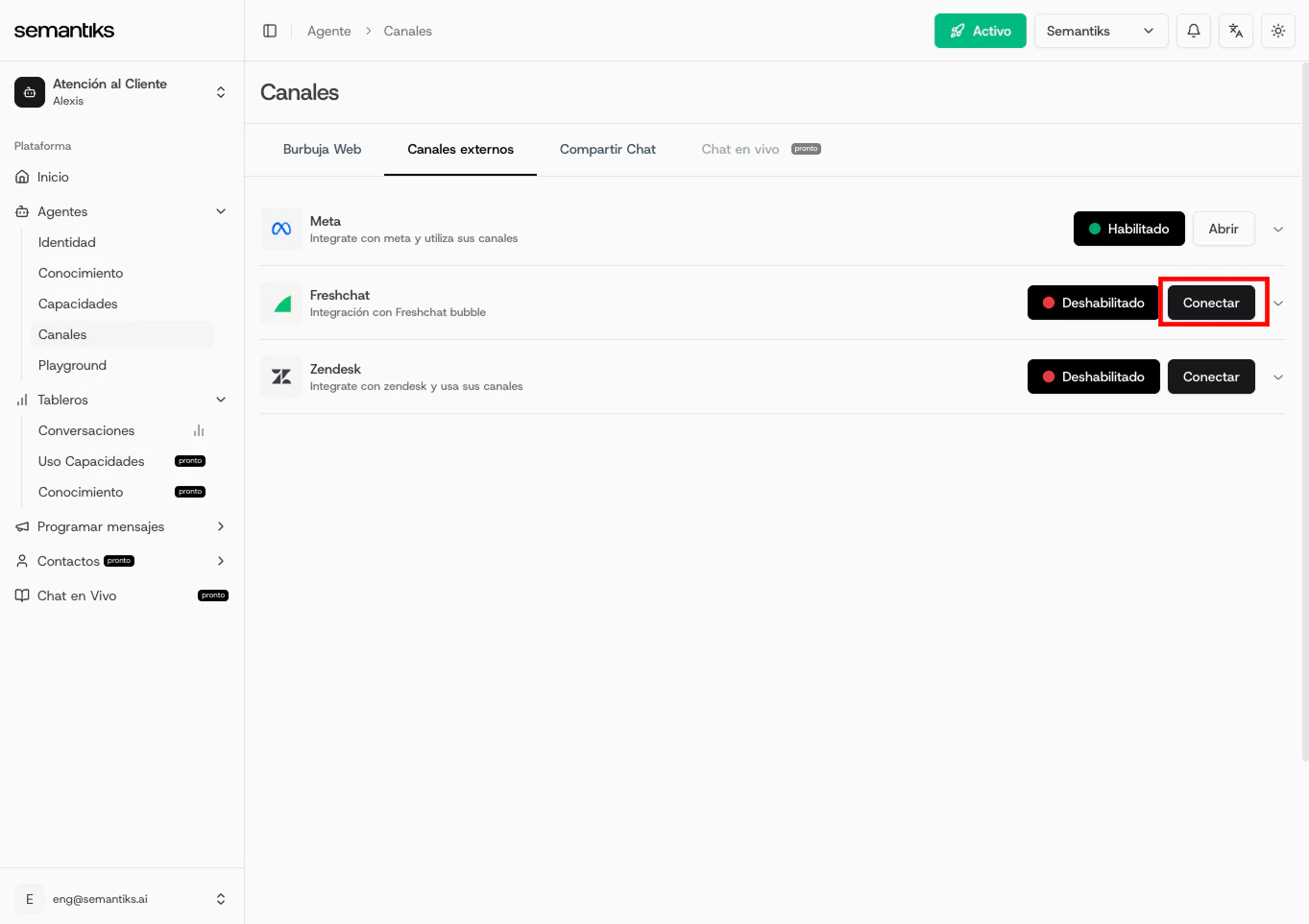
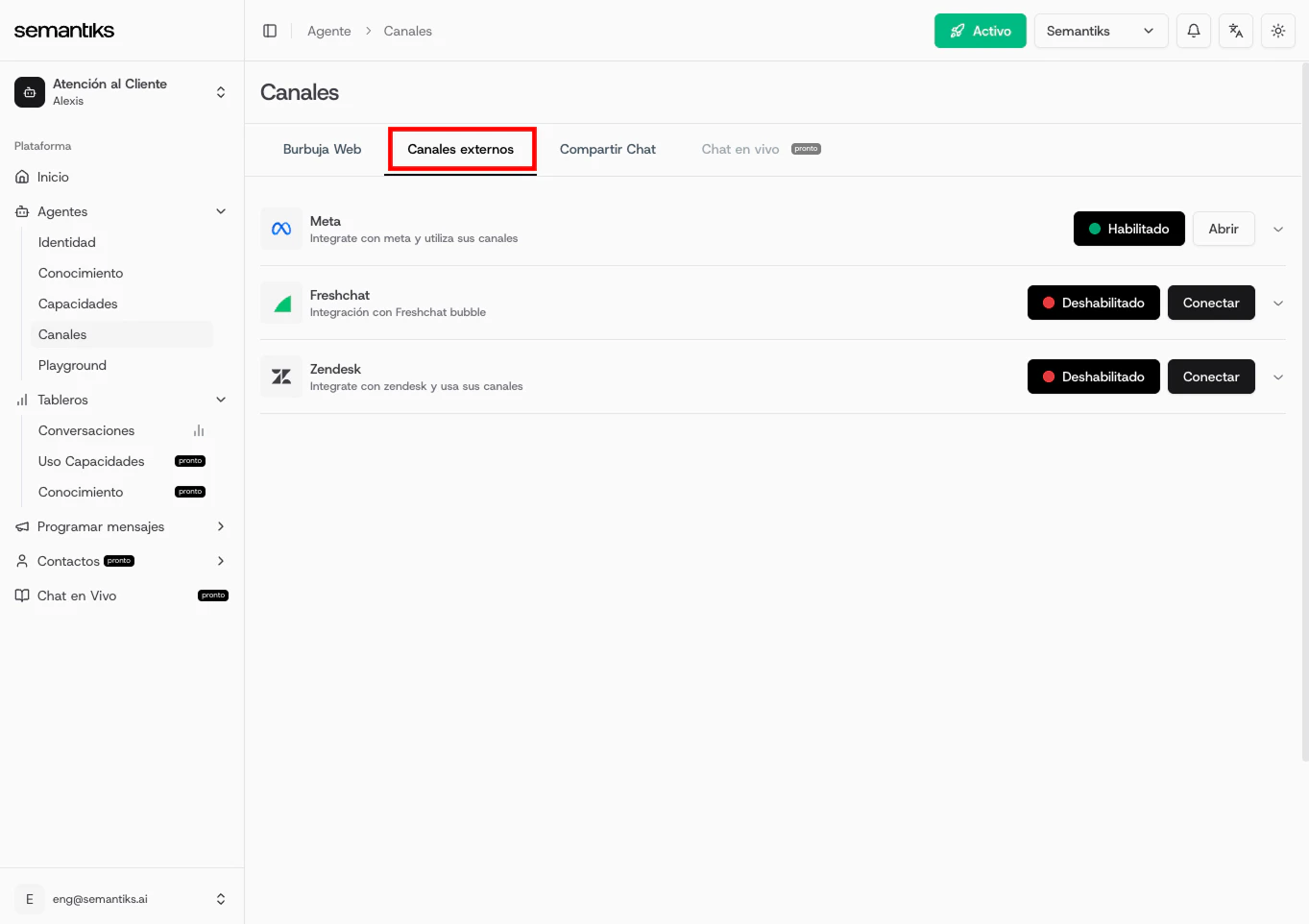 3. Busca el recuadro de Freshchat y haz clic en el botón Conecta.
 4. Al dar click, se abrirá un formulario donde deberás ingresar los siguientes campos:
* **App ID**
* **Public Key**
* **Base URL**
* **API Key**
4. Al dar click, se abrirá un formulario donde deberás ingresar los siguientes campos:
* **App ID**
* **Public Key**
* **Base URL**
* **API Key**
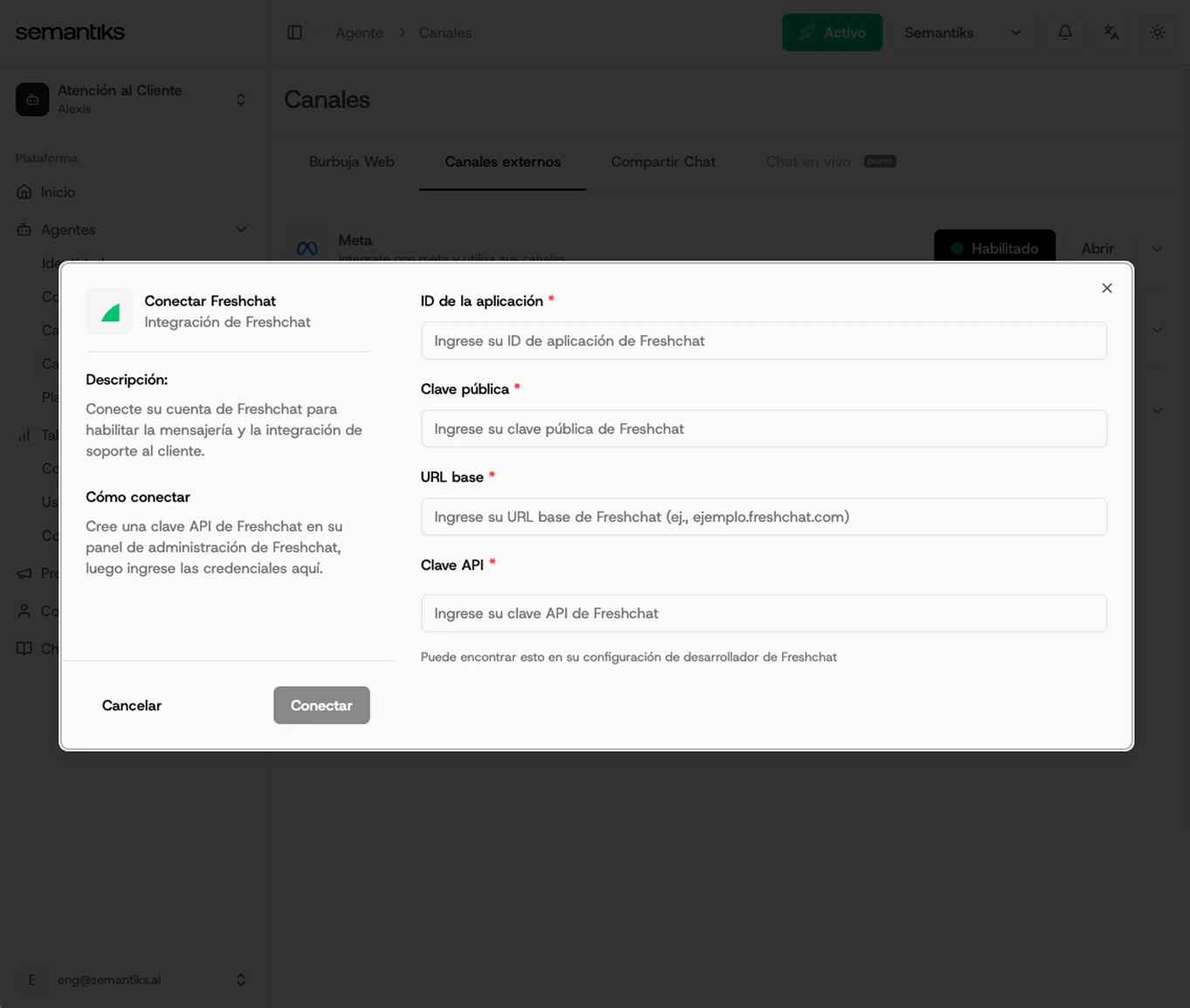 5. Una vez llenados todos los campos, haz clic en Conecta y la integración estará activa.
¡Listo! Tu agente Semantiks ya está conectado a Freshchat y listo para empezar a conversar con tus usuarios.
5. Una vez llenados todos los campos, haz clic en Conecta y la integración estará activa.
¡Listo! Tu agente Semantiks ya está conectado a Freshchat y listo para empezar a conversar con tus usuarios.