

Quick Summary of the Steps
Setting up IntelliAssign with Load Balanced assignment takes just a few minutes:- Enable IntelliAssign in your Freshchat admin settings and select the Load Balanced logic.
- Configure Agent Settings — especially the active conversations limit per member.
- In Group Settings, enable IntelliAssign for the group connected to Semantiks.
- Have each agent turn on “Set active on IntelliAssign” from their profile.
1
Enable IntelliAssign and select Load Balanced logic
IntelliAssign has two main assignment methods: Round Robin (assigns in turns, without considering how busy each agent is) and Load Balanced (assigns to the agent with the most free capacity at that moment). We recommend Load Balanced for support teams where conversations vary in duration.
- Go to the Freshchat console.
- In the left sidebar, click Admin Settings.
- Find and open IntelliAssign (under Configuration and Workflows).
- Switch the toggle from Disabled to Enabled.
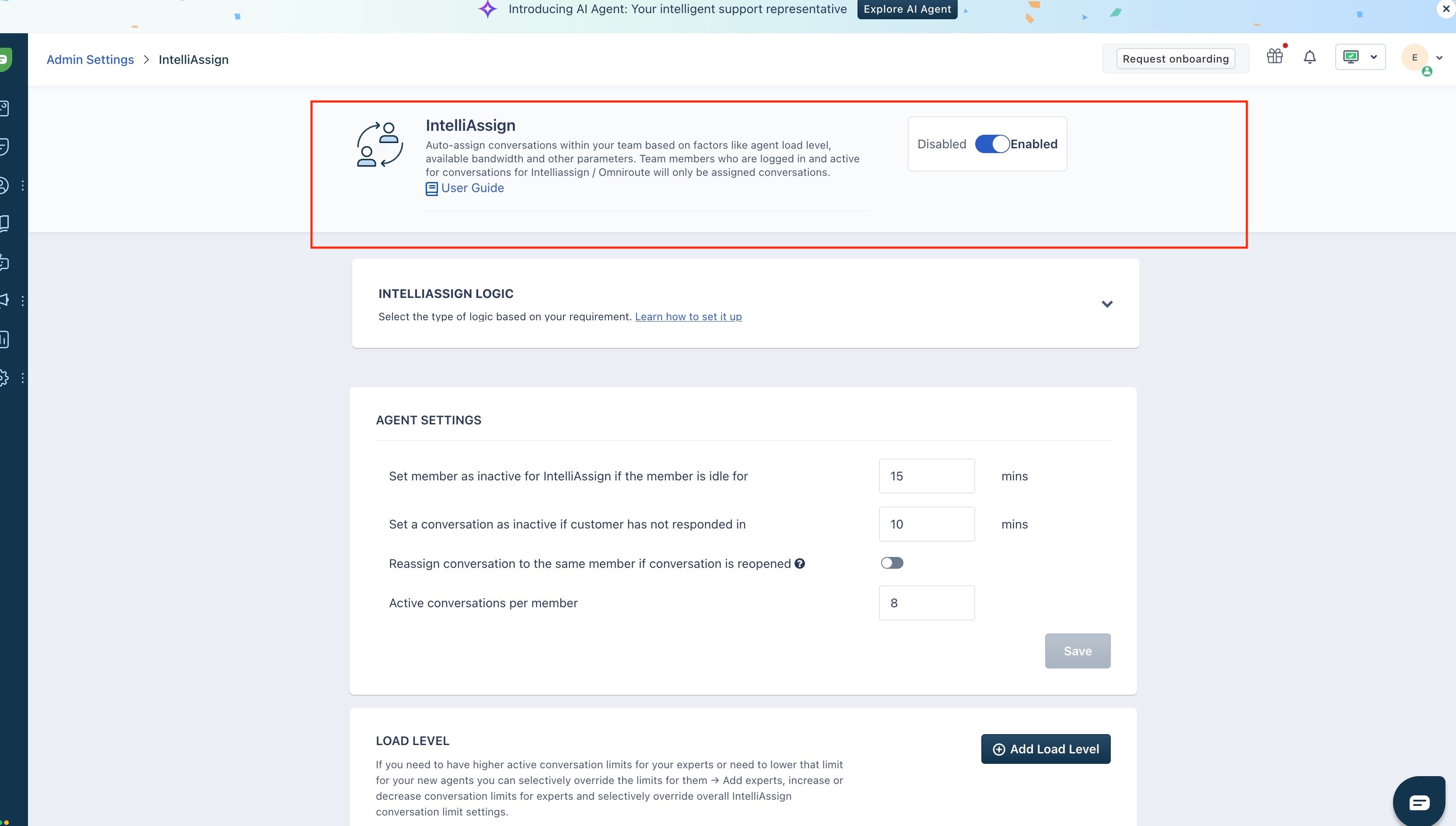
- Open the IntelliAssign Logic section and select Load Balanced.
2
Configure Agent Settings
These settings control when an agent stops receiving conversations:
- Idle time: minutes of inactivity before an agent is marked inactive for IntelliAssign.
- Active conversations per member: the maximum number of simultaneous conversations per agent. Once an agent reaches this limit, IntelliAssign routes new conversations to teammates with free capacity.
- On the same IntelliAssign page, scroll to Agent Settings.
- Set Active conversations per member according to your team’s capacity (for example, 8).
- Optionally, use Load Level to override the limit for specific agents (e.g., a lower limit for new agents, a higher one for experts).
- Click Save.
3
Enable IntelliAssign for your group
This is the most commonly missed step. Enabling IntelliAssign at the account level is not enough — you must also enable it for the specific group that receives escalations from Semantiks. Without this, conversations assigned to the group will wait in the group queue instead of being routed to an agent.
- Scroll down to the Group Settings section on the IntelliAssign page.
- Find the row for the group connected to Semantiks (for example, Support).
- Turn on the toggle in the Enable/Disable IntelliAssign for column.
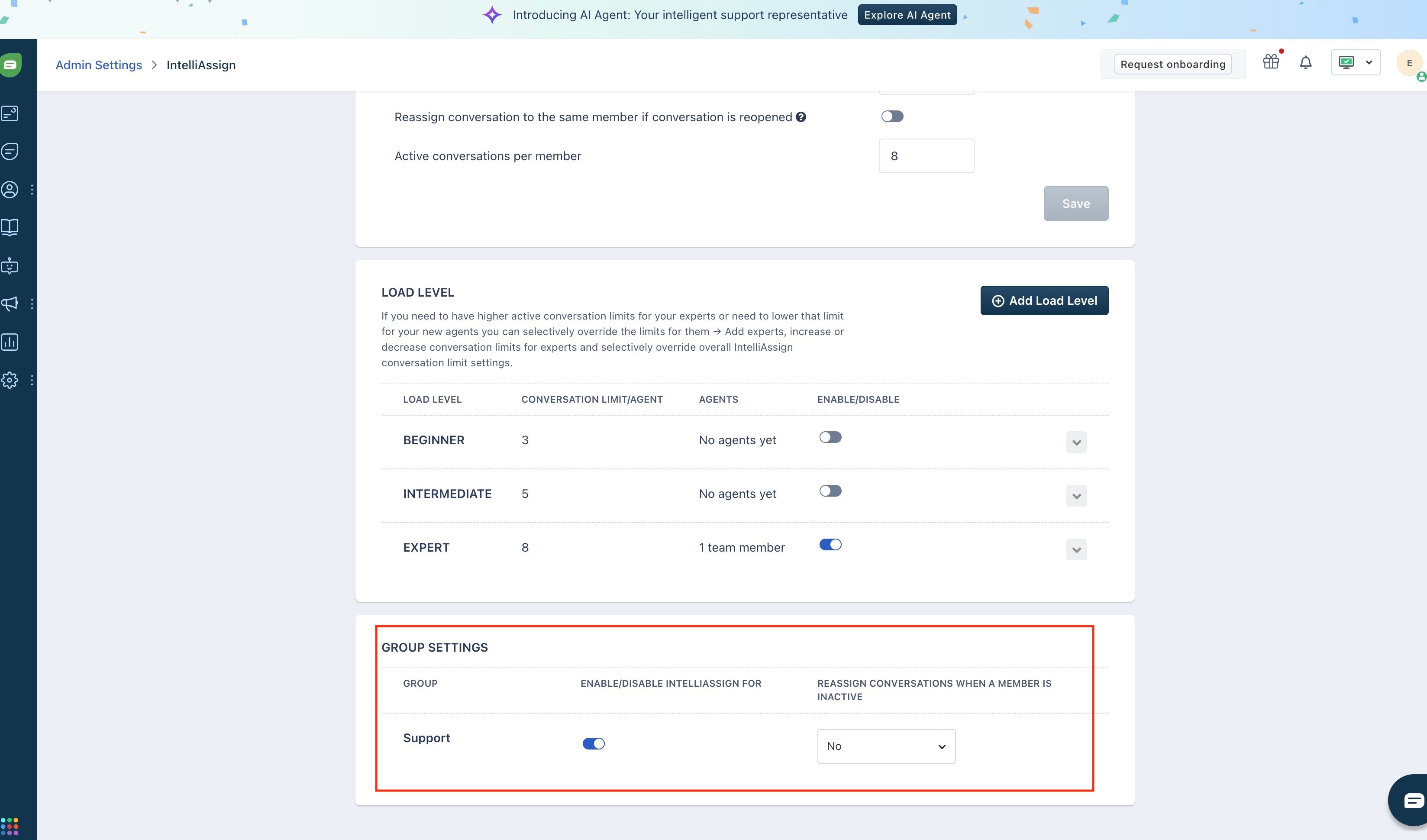
- Optionally, set Reassign conversations when a member is inactive to Yes so chats don’t get stuck if an agent disconnects.
4
Have each agent activate IntelliAssign
Being logged in and “Available” is not the same as being active on IntelliAssign. Each agent must turn on their personal toggle — otherwise IntelliAssign will not assign them any conversations.
- Each agent logs in to Freshchat.
- Click the profile icon in the top-right corner.
- Turn on Set active on IntelliAssign.